
3. Hyperlinks
When we want visitors to be able to navigate easily between pages we'll need to use hyperlinks or links. We're talking about a mechanism that gives us the power to swap the page we're viewing or move quickly from one section to another. And even go to external places that don't belong to us.
| Tag | <a> |
|---|---|
| Description | Link to navigate between sections, pages or resources. |
| Attributes | href="path" Destination or path to follow.target="_blank" Opens the destination in a new tab.download Downloads the resource. |
| Type | Inline |
An example of its structure.
<a href="https://www.gnu.org/software/emacs/">Text editor</a>The hyperlink text will be displayed in blue with an underline, which when clicked will open the page described in the href attribute. In the browser it will be shown, by default, in blue with an underline.
:quality(85)/https://andros.dev/static/img/courses/html/3/link.png)
Between other pages
If our whole website is on a single page it will become terribly boring, besides containing a scroll capable of scaring off even the most patient. That's why it's divided into different pages that the visitor switches at will.
Let's say I have 2 files, one will be called niño.html and the other colegio.html. And while we're at it, let's add another fiction: the child wants to go to school.
:quality(85)/https://andros.dev/static/img/courses/html/3/navegar.png)
To do this I'll place the following link in the first HTML (niño.html).
<a href="colegio.html">Go to school</a>When clicked it will enter the school.
Another case, the child wants to go to the classroom but the classroom is inside the school. My target is inside a folder, such as colegio, and the internal file is clase.html.
:quality(85)/https://andros.dev/static/img/courses/html/3/carpeta.png)
In niño.html, which is at the same level as colegio, we could link it with the following hyperlink.
<a href="colegio/clase.html">Go to the classroom</a>And what if I wanted to go from clase.html to niño.html? To go back we would always use ...
:quality(85)/https://andros.dev/static/img/courses/html/3/volver-atras.png)
<a href="../niño.html">Go to the classroom</a>External sites
If we want to go to a page outside our site we must give the full path with the domain.
<a href="https://es.wikipedia.org/">Wikipedia home</a><a href="https://es.wikipedia.org/wiki/World_Wide_Web">World Wide Web</a>A trick to open the site in a new tab is to use target="_blank".
<a href="https://es.wikipedia.org/wiki/World_Wide_Web" target="_blank">World Wide Web</a>Ideal if we don't want to lose our visitor.
Within the page
You can end up laying out an excessively long page, with too much scroll, making it necessary to create shortcuts to move around quickly and accurately. Those tools are called anchors or internal links.
To make an anchor you need 2 parts: the link and the target where we'll move to. An example of a link:
<a href="#experiencia">See my experience</a>Inside the href attribute we'll place a # followed by an alias that we choose (no spaces or accents). Next we'll position ourselves wherever we want that internal link to go. We create our marker.
<p id="experiencia">All my text...</p>It must have the id attribute and inside it the alias we made up.
Put together, it would look like the following.
<a href="#experiencia">See my experience</a>
<!-- Lots and lots of text -->
<p id="experiencia">All my text...</p>
To get a smooth movement you can use the CSS
scroll-behavior: smooth;on thehtmltag.
Resources
Web pages don't live on HTML alone. It's possible to link documents in formats that aren't native to the ecosystem, such as PDFs.
<a href="informe-maligno.pdf">Click here to conquer the world</a>... or ZIP, DOC, PSD, MP3, JPG, etc. Depending on the browser, some will be playable and others won't. Any file the browser recognizes it will render, unless we use the download attribute; the rest will be downloaded.
On the other hand, we can link functionalities of the operating system itself. Functionalities? Yes, the ability to make a phone call, or send an e-mail... and many others.
A small example.
<a href="tel:34666777888">Call me and I'll tell you</a>| Code | Description | Example |
|---|---|---|
| tel | Makes a phone call. | <a href="tel:34666777888">Call me and I'll tell you</a> |
| mailto | Opens the mail client. | <a href="mailto:guardianes@galaxia.com">Do you need help?</a> |
| geo | Opens the Maps or GPS software (Windows, Linux and Android). | <a href="geo:39.4597563,-0.3737169">We are here</a> |
| geo | Opens the Maps or GPS software (MacOS and iOS). | <a href="maps:39.4597563,-0.3737169">We are here</a> |
| skype | Calls through Skype. | <a href="skype:starlord">I can recommend good music</a> |
https://wa.me/<phone> |
Sends messages via WhatsApp. More information. | <a href="https://wa.me/34666777888">Let's chat</a> |
They aren't the only ones, but they are the most important.
Activity 1
Create a page like the following.

Activity 2
Modify the previous page.
- Add another hyperlink that points to a new page
menu-del-dia.html. - Create the following page
menu-del-dia.html.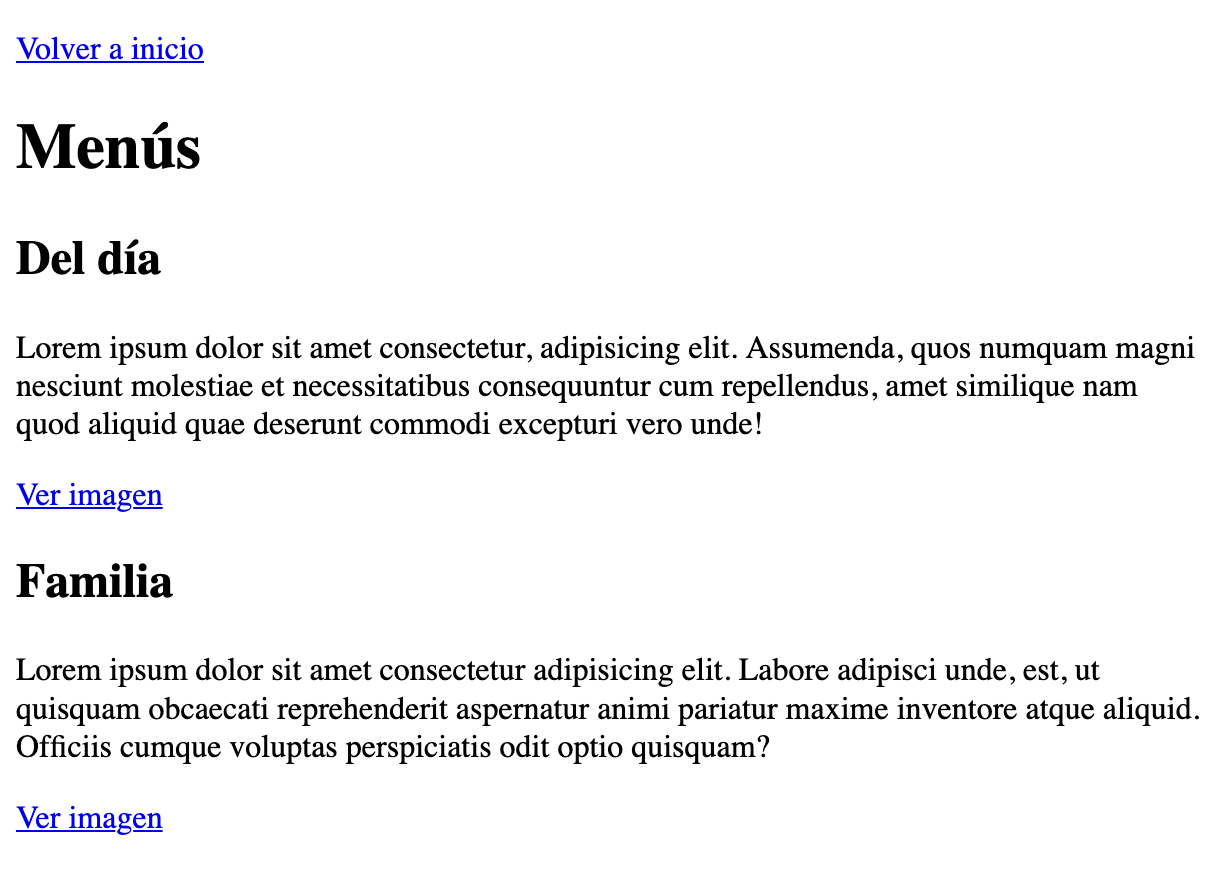
- The hyperlinks must point to some images that you must download from the internet. (you can use a free image bank such as unsplash.
Activity 3
Add an index to go to each of the scenes that are anchors.
:quality(85)/https://andros.dev/static/img/components/license/by-nc-nd.png)
This work is under a Attribution-NonCommercial-NoDerivatives 4.0 International license.

Building SPAs with Django and HTML Over the Wire: Learn to build real-time single page applications with Python
The HTML over WebSockets approach simplifies single-page application (SPA) development and lets you bypass learning a JavaScript rendering framework such as React, Vue, or Angular, moving the logic to Python. This web application development book provides you with all the Django tools you need to simplify your developments with real-time results.
Buy the bookHelp me keep writing
Every coffee gives me a push toward the next article.
 Sure, it's on me!
Comments
There are no comments yet.