
12. Accessibility
Accessibility in web development not only increases the spectrum of visitors who can browse a site, which should already be a weighty enough reason to dedicate time to it, but morally we should be obliged. Otherwise we are involuntarily expelling a sector of the population that has the same right as you to browse the internet. And as if that weren't enough, you should know that when you develop web pages for public institutions, accessibility is a basic requirement.
The people who need to use web accessibility are those who have visual, auditory, motor or cognitive disabilities. It also includes older people who may have difficulties using technology and need technological support. People with visual disabilities may require the use of screen readers or text magnification. People with auditory disabilities use subtitles or transcriptions to understand the content of a video or audio. People with motor disabilities use assistive tools to navigate a website, such as an adaptive mouse or special keyboard. People with cognitive disabilities may need a simple and easy-to-use design to understand and navigate a website.
And how can we satisfy all the needs? A first step is by creating simple and coherent structures that don't have to be at odds with good design. Remember, accessibility starts with HTML. We must guarantee that sites include some minimal practices that will bring the content closer to all types of audiences.
Below we'll review the most essential elements in web accessibility that you should apply in your workflow.
Good semantics
Use headings in the content, appropriate tags for content, list structure for lists, etc. Avoid complexities or elements that add nothing to the site. The simpler the structure, the easier it will be for users with disabilities to navigate the site.
<h1>Mule Coffee Shop</h1>
<h2>Location</h2>
<p>We are located at <address><a href="geo:39.4597563,-0.3737169">12 Maldonado street</a></address></p>
<h2>Our menu</h2>
<ul>
  <li><a href="#cafe">Coffee</a></li>
  <li><a href="#te">Tea</a></li>
  <li><a href="#zumos">Juices</a></li>
</ul>
Indicate the language
Mark at the beginning of your page the language you're using. This will help screen readers pronounce the content correctly. In addition, search engines will be able to index your content better and automatic translators will be able to do their job.
<html lang="es">Avoid blocking the zoom
When you declare the viewport meta, avoid including maximum-scale=1.0 and user-scalable=no since this blocks the zoom. This can be a problem for users with visual disabilities who need to enlarge the content to read it.
<meta name="viewport" content="width=device-width, initial-scale=1.0, shrink-to-fit=no">Create a skip hyperlink
Screen readers read the content of a page in the order in which it appears in the HTML code. This means that users with visual disabilities must listen to all the navigation content before reaching the main content. If you want to help them, and not make them waste time, you can create a skip hyperlink that allows users to jump directly to the main content.
Place it as the first element inside body, so that it's the first thing to receive focus when pressing the tab key, and add tabindex="-1" to the target.
<body>
    <a class="omision" href="#main">Skip to content</a>
    <header>
        <!-- logo, menu... -->
    </header>
    <main id="main" tabindex="-1">
        <!-- content -->
    </main>
</body>
The tabindex="-1" is the detail that almost everyone forgets: without it, some browsers only scroll when activating the link, but the focus stays in the header and the next tab falls back into the menu, so the jump will have been of no use. With it, the focus really moves to main, without adding it to the normal tab order.
The usual thing is for the hyperlink not to be seen until it receives focus. To hide it never use display: none or visibility: hidden: they would remove it from the tab order and it would cease to exist for the keyboard too. Hide it only visually, reducing it to a clipped pixel, and let it appear when it receives focus.
.omision:not(:focus) {
    position: absolute;
    width: 1px;
    height: 1px;
    overflow: hidden;
    clip: rect(0 0 0 0);
    white-space: nowrap;
}
Make sure all your input elements contain a label
Every input must have an associated label. This will help users with visual disabilities know what information they should enter in the field.
You can wrap the label, together with the text, around the input.
<label>
    Favorite fish
    <select name="mi-pez-favorito">
    <option value="1">Dory</option>
    <option value="2">Nemo</option>
    <option value="3">Bruce</option>
    </select>
</label>
Use the for attribute to associate the label with the input.
<label for="pez">Favorite fish</label>
<select name="mi-pez-favorito" id="pez">
    <option value="1">Dory</option>
    <option value="2">Nemo</option>
    <option value="3">Bruce</option>
</select>
Or use the aria-label attribute to associate the label with the input.
<select name="mi-pez-favorito">
    <option value="" aria-label="Favorite fish" disabled selected>Favorite fish</option>
    <option value="1">Dory</option>
    <option value="2">Nemo</option>
    <option value="3">Bruce</option>
</select>
Use aria-label on empty buttons or hyperlinks
In case a button or hyperlink doesn't contain text, or its content doesn't describe the behavior, use aria-label to give it a name.
<button type="button" aria-label="Close">X</button><a href="#" aria-label="Next">➡️</a>Apply aria-hidden on decorative elements
If you have decorative elements that add no information to the content, use aria-hidden="true" to indicate that they should not be read by screen readers.
<h1>Healthy fruit</h1>
<ul>
    <li><span aria-hidden="true">🍎</span>Apple</li>
    <li><span aria-hidden="true">🍌</span>Banana</li>
    <li><span aria-hidden="true">🍓</span>Strawberry</li>
</ul>
You can also apply it to more complex structures or those that wrap others.
<button aria-label="open filter">
    <div class="icono" aria-hidden="true">
    <span></span>
    <span></span>
    <span></span>
    </div>
</button>
Use scope on header cells
If you have a table, use the scope attribute on the header cells to indicate whether the header is for a column or a row.
<table>
    <thead>
        <tr>
            <th scope="col">Name</th>
            <th scope="col">Age</th>
        </tr>
    </thead>
    <tbody>
        <tr>
            <td>Juan</td>
            <td>45</td>
        </tr>
    </tbody>
</table>
Use content HTML to structure
Content tags will help screen readers understand the context of the information. For example, if you have repetitive structures, such as the comments of a post, use article.
<aside>
    <p>Remember that to comment you must be a great conqueror and go to <a href="registro.html">registration</a></p>
</aside>
<main class="comentarios">
    <h1>Web accessibility</h1>
    <p>Web accessibility is the possibility that any person can use a web page, regardless of their abilities or limitations.</p>
    <h2>Comments</h2>
    <article>
        <h2>Keanu Reeves</h2>
        <p>Thanks for thinking about my color blindness</p>
    </article>
    <article>
        <h2>Andrea Bocelli</h2>
        <p>With my screen reader I read your website perfectly.</p>
    </article>
    <article>
        <h2>Stephen Hawking</h2>
        <p>I can navigate with my assisted mouse. The possibilities are infinite.</p>
    </article>
</article>
Always include alternative text in your images
Alternative text is an attribute used in images to describe their content. This helps screen readers understand what's in the image.
<img src="asdy7as8f6a.webp" alt="Cat looking at the camera">Position related content close to each other
If you have related content, such as a form, place the label, the input and the error close to each other. This will help screen readers understand that they are related.
<form>
    <label>
    Search
    <input type="search" name="buscar">
    </label>
    <span class="error" aria-hidden>No results found</span>
    <button type="submit">Search</button>
</form>
Replace tags with ARIA (Accessible Rich Internet Applications)
For aesthetic reasons, tags are sometimes replaced by others. For example, an input by a span. It's very common since checkboxes aren't malleable at the design level. In these cases, use ARIA to indicate that the element has a different role.
<input type="checkbox" id="condiciones">
<label for="condiciones">I accept the terms</label>
<span
role="checkbox"
aria-checked="false"
tabindex="0"
aria-labelledby="condiciones"></span>
<label id="condiciones">I accept the terms</label>You can go deeper in the Mozilla documentation.
Use aria-live to update dynamic content
If you have dynamic content, such as a chat, use aria-live to indicate that the content updates automatically.
<div aria-live="polite">
    <p>User Cervantes has written a new message</p>
</div>
The values it can have are:
polite: The user will be notified but their navigation will not be interrupted. The priority is low.assertive: The user will be notified and their navigation will be interrupted. The priority is high.off: The user will not be notified unless the focus requests it.
With the previous guidelines you'll be able to open your website to a wider audience. But if you want to go deeper into web accessibility, I recommend that you read the Mozilla web accessibility guide.
Activity 1
In the element inspector, there's a tab called Accessibility that lets you see how your website looks for a screen reader.
Activate it and browse through some of your favorite websites. Are they accessible? What could they improve?
Activity 2
Create a simple website with a registration form. Use the accessibility techniques you've learned in this lesson and then check that it works correctly with the accessibility inspector.
:quality(85)/https://andros.dev/static/img/components/license/by-nc-nd.png)
This work is under a Attribution-NonCommercial-NoDerivatives 4.0 International license.
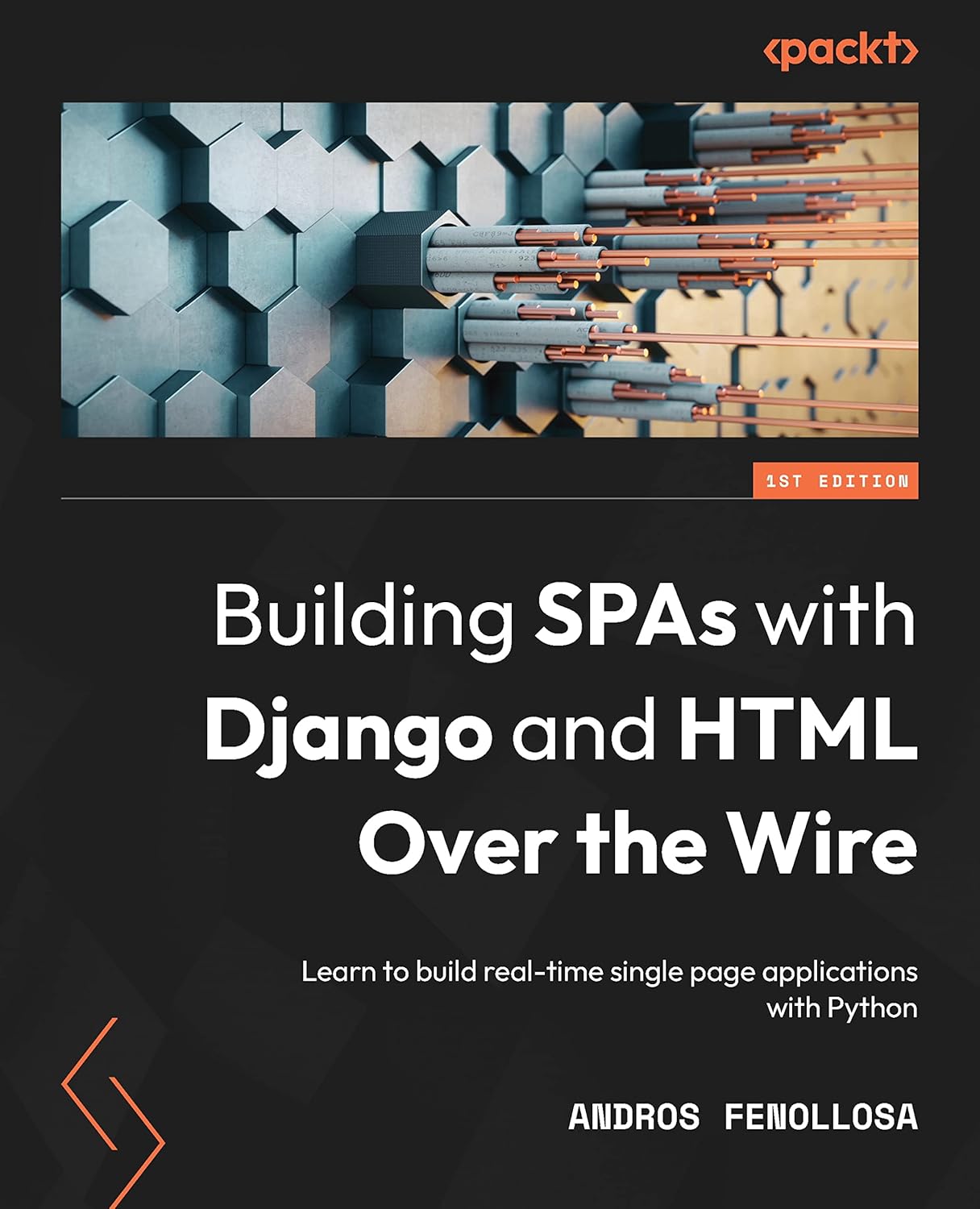
Building SPAs with Django and HTML Over the Wire: Learn to build real-time single page applications with Python
The HTML over WebSockets approach simplifies single-page application (SPA) development and lets you bypass learning a JavaScript rendering framework such as React, Vue, or Angular, moving the logic to Python. This web application development book provides you with all the Django tools you need to simplify your developments with real-time results.
Buy the bookHelp me keep writing
Every coffee gives me a push toward the next article.
 Sure, it's on me!
Comments
There are no comments yet.