
5. Events
Any activity produced by a user is called an Event: pressing a key, moving the mouse, scrolling, pressing a button... And all events can be listened to in order to trigger actions. In other words, we can detect and bind each event to a JavaScript feature. We can even extract information from it!
Among the most important events we can find:
- click: A left mouse click happens.
- scroll: The
scrollis moved. - keydown: A key on the keyboard is pressed.
- submit: A form is submitted.
- load: The page has finished loading.
- focus: An
inputreceives focus. - blur: An
inputloses focus. - animationstart: An animation starts.
- animationend: An animation ends.
- transitionstart: A transition starts.
- transitionend: A transition ends.
- contextmenu: A right mouse click happens.
- mouseenter: The mouse cursor enters.
- mouseleave: The mouse cursor leaves.
- mousemove: The mouse cursor moves.
They must be applied through addEventListener, a function present on every DOM object (any tag you capture).
document.querySelector("#formulario").addEventListener("submit", function(evento) {
    console.log('The form has been submitted');
}, false);
The addEventListener function takes 3 input parameters:
- Event name, in our example it was
submit. - Function that will run when the event is detected. It can be an anonymous function or a reference.
- Boolean to indicate whether it should listen across the entire DOM tree (when it's
true) or only listen on the tag itself (when it'sfalse).
There are many more. You can browse the full list in the Mozilla Developer documentation.
Now that you know what events are and which ones are most notable, let's try some examples of their everyday use.
Click on a button
Below you can see that clicking on a button prints funciono to the console.
<input id="boton" type="button" value="Press me">

<script>
  // We capture the button
  const boton = document.querySelector('#boton');

  // We listen for the 'click' event on the button. We'll run the function in the second parameter.
  boton.addEventListener('click', function(evento) {
    console.log('funciono');
  }, false);
</script>
Pressing a key
In this example, when the Enter key is pressed, an alert will show with the text Me has pulsado enter.
It's worth highlighting the condition evento.code === "Enter". If you want to act on another key, you'll need to look up its key code. You can play around by printing evento.code, or look up the key in the full Mozilla list.
<input id="campo" type="text" placeholder="Type and press Enter when you're done">

<script>

  // Functions
  function instrucciones(evento) {
    // Filter by the Enter key
    if(evento.code === "Enter") {
      alert("You pressed enter");
    }
  }

  // Events
  document.body.addEventListener("keydown", instrucciones);

</script>
Scroll
Example where the scroll position is printed to the console every time you scroll.
document.addEventListener("scroll", function(evento) {
  const ultimaPosicion = window.scrollY;
  console.log(ultimaPosicion)
});
From here, the rest of the events are practically the same. All that's left is practice.
Activity 1
Starting from the following HTML...
<h1>How is coffee usually drunk?</h1>
<p>The most popular ways to drink it are black or plain and with milk (with or without sugar); cream, condensed milk, chocolate or some liqueur are also usually added, meaning there are various ways to prepare it depending on the recipe. It's usually served hot, but it's also drunk cold or with ice. In Spain, Portugal and Paraguay, drinking torrado or torrefacto coffee is common, meaning coffee roasted in the presence of sugar.</p>
Hide the p and only show it if the h1 is clicked.
Activity 2
Build a header that hides when the scroll is at the start (position 0) but shows at any other position.
Nightmare level 👹
Add a smooth animation.
Activity 3
Design a page with a black background.
- Show the mouse's
xandyin the top-left corner as it moves. - Now it should only update when the left mouse button is pressed.
- When clicking anywhere, a white circle should appear.
Activity 4
Show a photo of a mountain.
- When you click and hold on it, its coordinates should change to match the mouse's. Visually, it will follow the cursor.
- If you click again, it will stop moving, staying at the position where you clicked.
:quality(85)/https://andros.dev/static/img/components/license/by-nc-nd.png)
This work is under a Attribution-NonCommercial-NoDerivatives 4.0 International license.
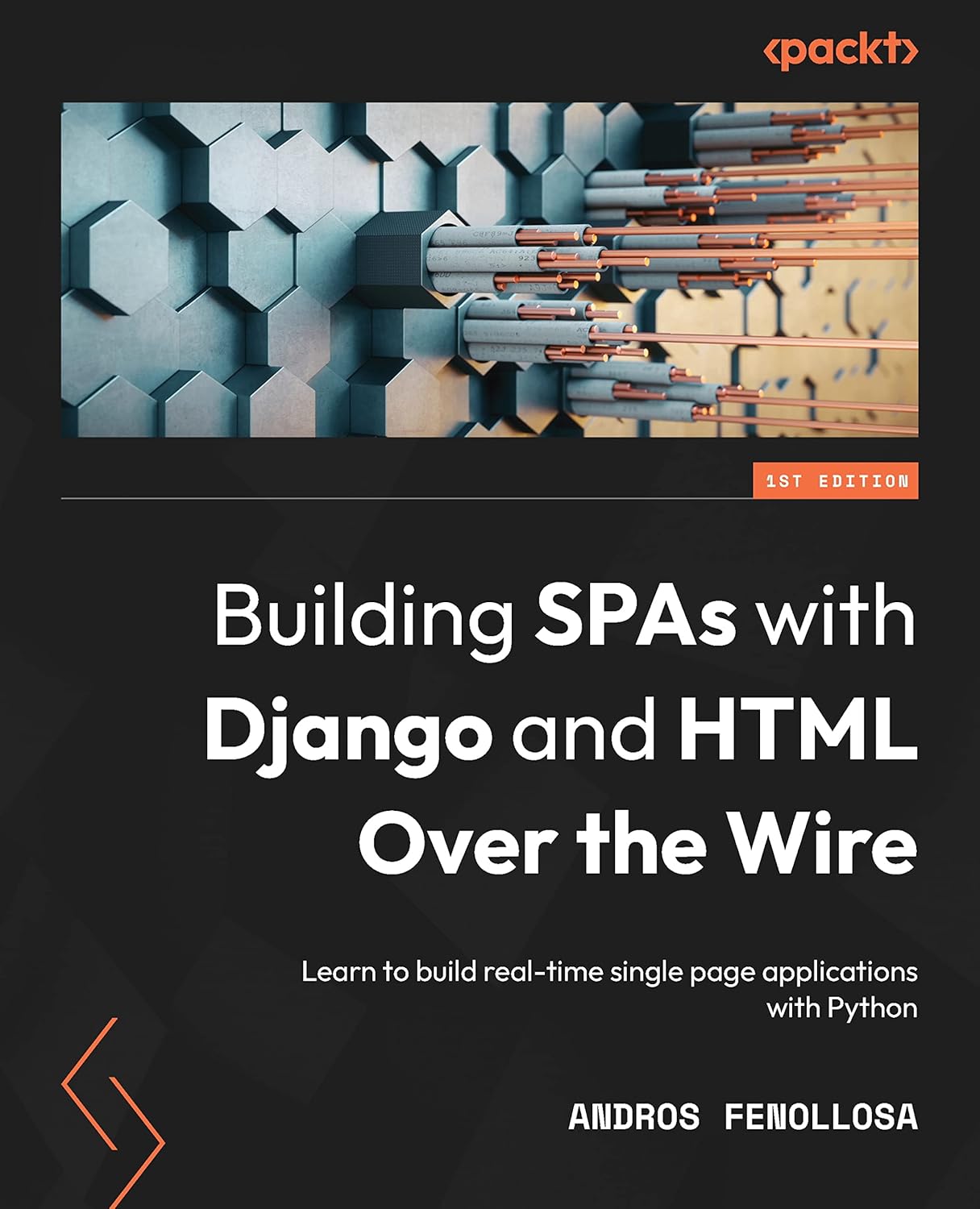
Building SPAs with Django and HTML Over the Wire: Learn to build real-time single page applications with Python
The HTML over WebSockets approach simplifies single-page application (SPA) development and lets you bypass learning a JavaScript rendering framework such as React, Vue, or Angular, moving the logic to Python. This web application development book provides you with all the Django tools you need to simplify your developments with real-time results.
Buy the bookHelp me keep writing
Every coffee gives me a push toward the next article.
 Sure, it's on me!
Comments
There are no comments yet.