
2. Buttons
In this chapter we are going to dig deeper into the use of buttons and their properties.
In Emacs we have 4 types of widgets that let us create clickable elements, which will run an action when they are pressed. They differ from each other in their visual appearance or their behavior.
link
The link widget is the simplest button of all, since it is just a piece of text wrapped between 2 characters that runs an action when pressed.
(widget-create 'link
               :notify (lambda (&rest ignore)
                         (message "Hello world!"))
                "Click me")
It will show the following result:
[Click me]We must define the :notify property to indicate the action that will run when the button is pressed, along with the text ("Click me") that will be shown on the button. Optionally we can define the :widget-link-prefix and :widget-link-suffix properties to add text before and after the button text.
url-link
The url-link widget is similar to the link widget, but instead of running an action when pressed, it opens a URL in the browser. To know which browser it should open, the variable browse-url-browser-function is used.
;; Open URLs in the default browser
(setq browse-url-browser-function 'browse-url-default-browser)

;; Open URLs in the EWW browser
(setq browse-url-browser-function 'eww-browse-url)

(widget-create 'url-link
               :url "https://www.google.com"
               "Google")
It will show the following result:
[Google]We must define the :url property to indicate the URL that will open in the browser, along with the text ("Google") that will be shown on the button. Optionally we can define the :widget-link-prefix and :widget-link-suffix properties to add text before and after the button text.
info-link
The info-link widget is similar to the link widget, but instead of running an action when pressed, it opens an Info node.
An Info node is a plain text document that contains information about a specific topic.
(widget-create 'info-link
               :node "emacs"
               "Emacs")
It will show the following result:
[Emacs]We must define the :node property to indicate the Info node that will open, along with the text ("Emacs") that will be shown on the button. Optionally we can define the :widget-link-prefix and :widget-link-suffix properties to add text before and after the button text.
push-button
The push-button widget is similar to the link widget.
(widget-create 'push-button
               :notify (lambda (&rest ignore)
                         (message "Hello world!"))
               :help-echo "Click me"
               "Click me")
It will show the following result:
[Click me]We must define the :notify property to indicate the action that will run when the button is pressed, along with the text ("Click me") that will be shown on the button. Optionally we can define the :help-echo property to show a text when the mouse hovers over the button or the cursor is on it.
Example
We are going to build a buffer with the list of our favorite bookmarks, to quickly access the sites we visit most.
Below you can see the code:
;; -*- coding: utf-8 -*-
;; Imports
(require 'widget)

(eval-when-compile
  (require 'wid-edit))

;; Variables
(defvar buffer-name "*Bookmarks*")
(setq browse-url-browser-function 'eww-browse-url)
(defvar list-bookmark '(("Google" . "https://www.google.com")
                        ("DuckDuckGo" . "https://duckduckgo.com")
                        ("Emacs" . "https://www.gnu.org/software/emacs/")
                        ("Org" . "https://orgmode.org")
                        ("Reddit" . "https://www.reddit.com")
                        ("Youtube" . "https://www.youtube.com")))

;; Functions

(defun main-layout ()
  "Make widgets for the main layout."
  (interactive)
  ;; Create the buffer
  (switch-to-buffer buffer-name)
  ;; Clear the buffer
  (kill-all-local-variables)
  (let ((inhibit-read-only t))
    (erase-buffer))
  (remove-overlays)
  ;; Title
  (widget-insert "Bookmarks\n\n")
  ;; Create the widgets
  (dolist (bookmark list-bookmark)
    (widget-create 'url-link
           :url (cdr bookmark)
           (car bookmark))
    (widget-insert "\n\n"))
  ;; Display the buffer
  (use-local-map widget-keymap)
  (widget-setup)
  ;; Focus on the first link
  (widget-forward 1))
;; Initialization
(main-layout)
We can now click to go to different places or run our own functions, but not type. In the next chapter we will look at the different types of text fields.
Activity 1
Create a button that, when pressed, tells you the percentage of the year we are currently at. Show the result in the minibuffer.
For example:
- If it is January 1st, it will show 0%
- If it is July 1st, it will show 50%
- If it is December 31st, it will show 100%
Activity 2
Show 2 buttons that change the buffer background color to red and blue respectively.
Activity 3
Create a button that, when pressed, shows the title of the latest Hacker News article in the minibuffer.
You will need to make an HTTP request to the Hacker News API for the id of the latest article.
https://hacker-news.firebaseio.com/v0/maxitem.json
and with the id fetch the title using the following route:
https://hacker-news.firebaseio.com/v0/item/38899706.json
Where 38899706 is the id obtained with the previous endpoint.
:quality(85)/https://andros.dev/static/img/components/license/by-nc-nd.png)
This work is under a Attribution-NonCommercial-NoDerivatives 4.0 International license.
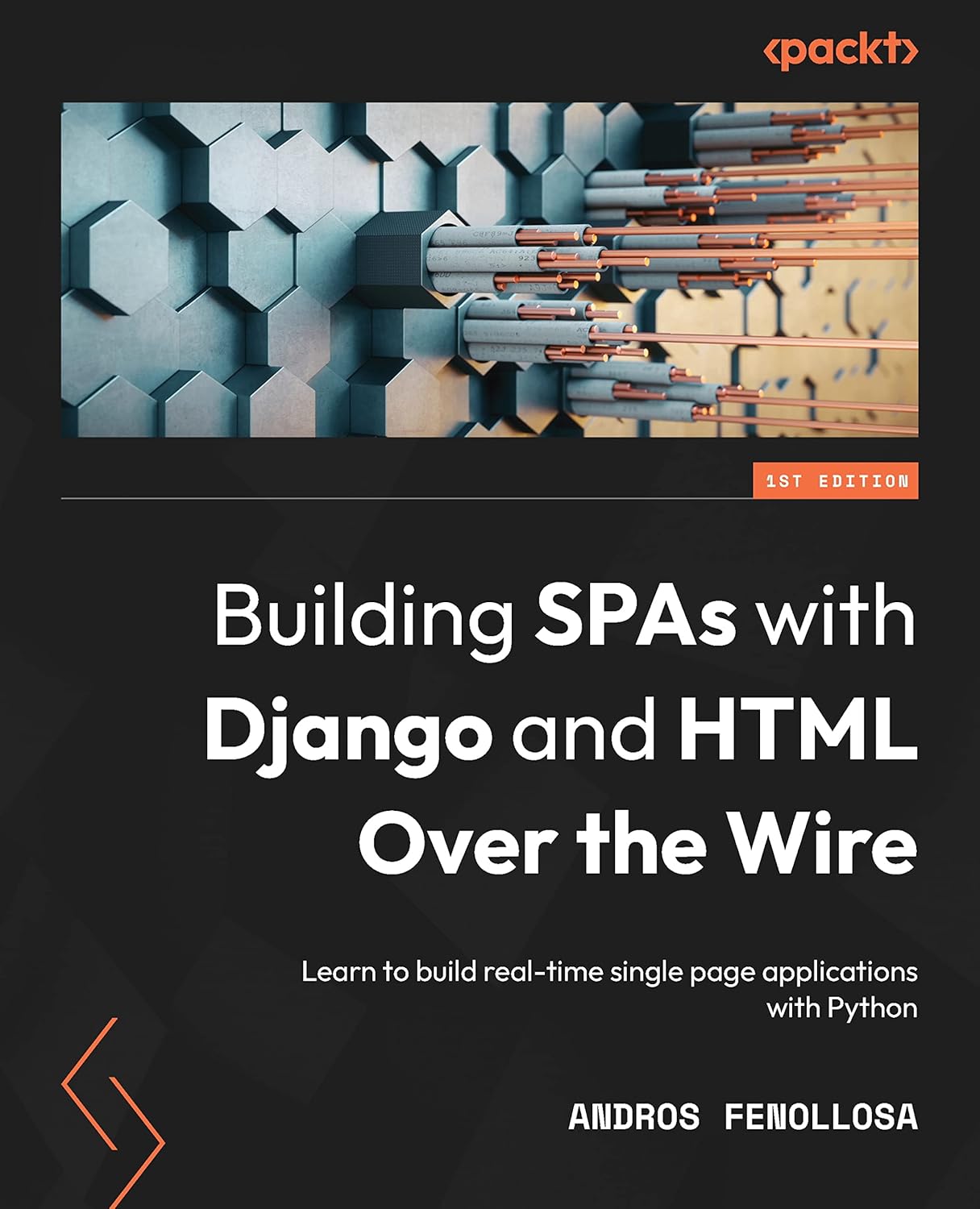
Building SPAs with Django and HTML Over the Wire: Learn to build real-time single page applications with Python
The HTML over WebSockets approach simplifies single-page application (SPA) development and lets you bypass learning a JavaScript rendering framework such as React, Vue, or Angular, moving the logic to Python. This web application development book provides you with all the Django tools you need to simplify your developments with real-time results.
Buy the bookHelp me keep writing
Every coffee gives me a push toward the next article.
 Sure, it's on me!
Comments
There are no comments yet.